

Ipv4 Port forwarding for Instances
The Challenge:
Instances running on the Aleph network are natively assigned IPv6 addresses. This provides a vast address space and modern networking features. However, it presents a connectivity challenge: users and services on the legacy IPv4 internet cannot directly reach these IPv6-only instances. This feature provides the necessary translation layer to bridge that gap.
The Solution: An Automated IPv4-to-Instance Gateway
This feature allows you to expose a specific TCP/UDP port on your private IPv6 instance to the public IPv4 internet. It works by creating a forwarding rule on a public-facing Compute Resource Node (CRN) IPv4 address, which acts as a gateway.
Up to 20 internal ports might be forwarded per instance.
Requirements
This feature is available to all Instance running on Compute resource nodes newer than version 1.6.0. No special configuration is needed on the Node operator parts.
Usage
How to configure port forwarding for your instance
From the aleph cloud web app
Port-forwarding domain can be configured in your instance configuration page https://app.aleph.cloud/console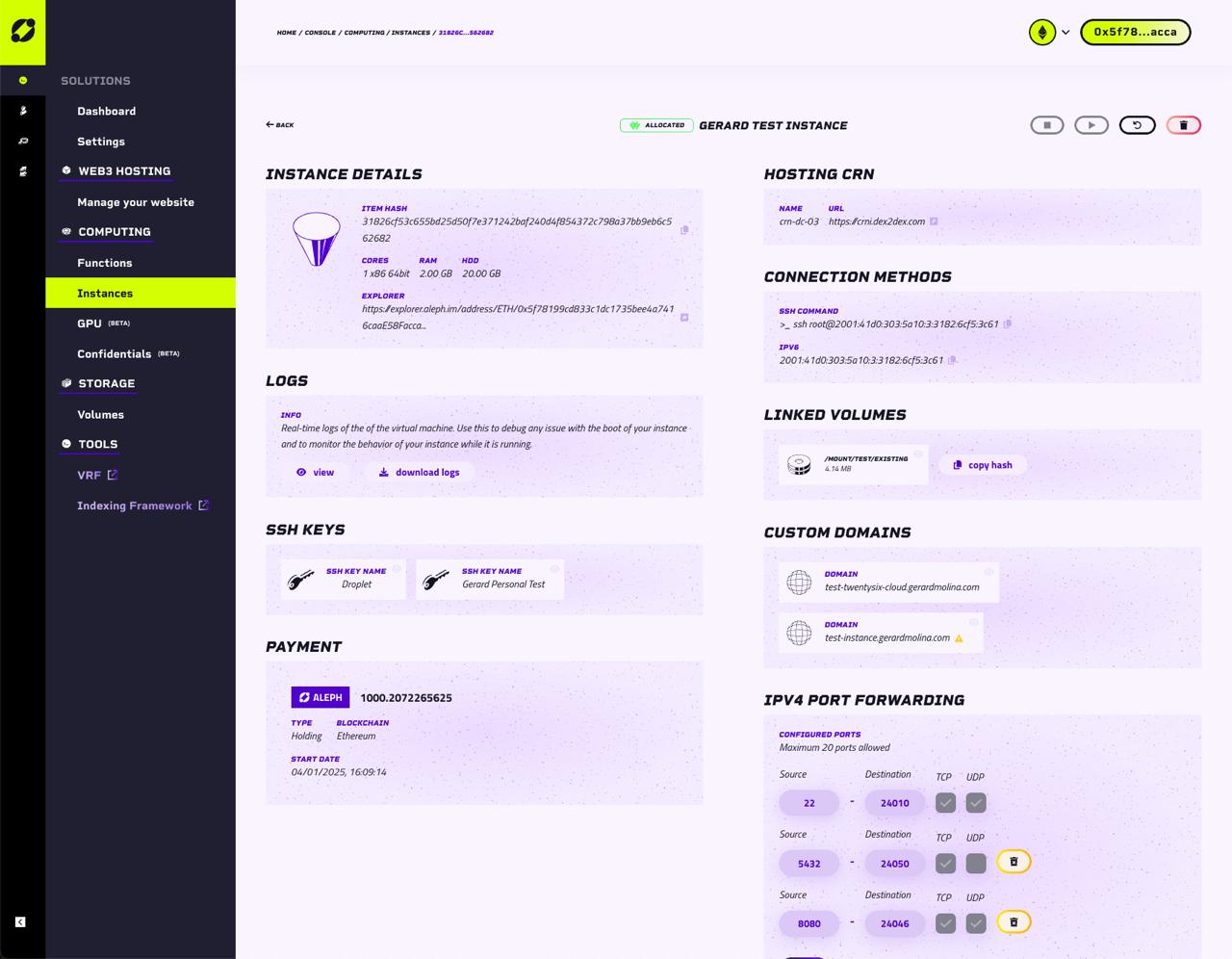
From there you will be able to show, add, modify and remove ports.
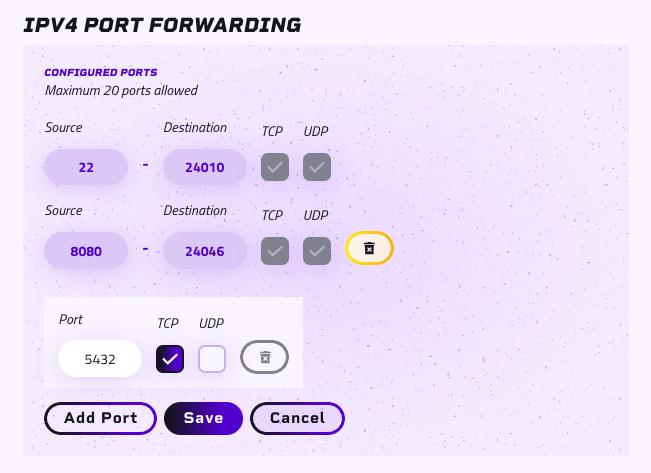
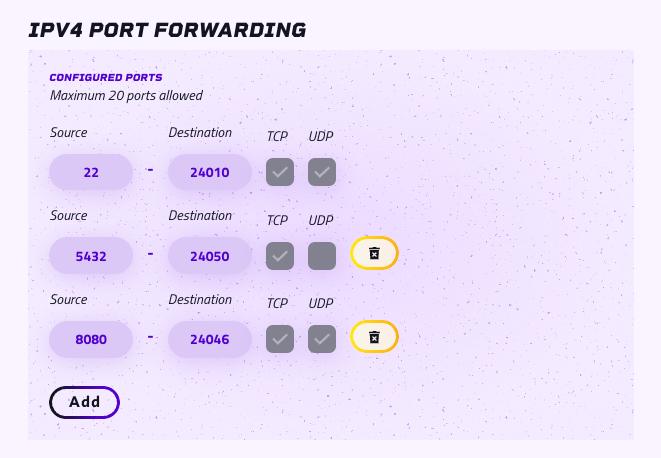
After adding a port, the external port will be shown after a minute or so. When setup is complete, the port on the instance will be accessible using the CRN domain name or ip and the external port.
If a custom domain name has been set up for your instance, it might also be used. To check if the custom domain was properly setup the dns should resolve to the hosting CRN ipv4 ip.
From the aleph CLI
Port forwarding for your instance can be managed via the port-forward subcommand group (alias: pfw).
The list of commands can be seen using aleph instance port-forward --help
Create a new port forwarding
Set up a forward for your address using:
aleph instance port-forward create <VM_ID> <PORT>By default TCP is enabled and UDP is disabled. Use --tcp false or --udp true to change this:
aleph instance port-forward create <VM_ID> <PORT> --tcp true --udp falseFor example:
aleph instance port-forward create a8a2d6ad3858e1eedc985d89c33ab6898babe6ae5d68ce3cdafc78d20dbe4cd8 22The port forwarding may take one minute or so to set up.
You can check on which external port your internal port is exposed, using the aleph instance list command
After setup is complete, you can access your instance using the CRN domain name or ip and the external port.
If a custom domain name has been set up for your instance, you may also use it. To check if it is properly setup the dns should resolve to the hosting CRN ipv4 ip.
Troubleshooting
If it fails to set up, you can try forcing a refresh using the refresh command
aleph instance port-forward refresh <VM_ID>List port forwarding
aleph instance port-forward listFilter by VM using --vm-id:
aleph instance port-forward list --vm-id <VM_ID>$ aleph instance pfw list --address my-account
ITEM_HASH PORT EXTERNAL_PORT TCP UDP
a8a2d6ad3858 22 27042 true false
a8a2d6ad3858 8080 27043 true true
b3f1c4e29d77 22 N/A true falseITEM_HASH is truncated to its 12-character prefix (the same shorthand aleph instance list shows). EXTERNAL_PORT is N/A until the CRN assigns one. --address accepts a raw address, a local account name, or an alias.
More information
More help is available from the aleph command online help system which can be invoked via:
aleph instance port-forward --help