

GPU Instance Creation and Configuration
This section outlines the process of starting a GPU instance on the Aleph Network and configuring the GPU on it.
The Aleph CLI is required.
See CLI Reference or use --help for a quick overview of a specific command.
Setup
Create an instance with GPU
The CLI provides a streamlined command to create a GPU instance. Use aleph instance price --list-gpus to list available GPU models, then pass the model name via --gpu. Alternatively, you can create your GPU instance on Aleph Cloud.
aleph instance create my-gpu-instance \
  --image ubuntu26 \
  --gpu rtx4090 \
  --ssh-pubkey-file ~/.ssh/id_ed25519.pub
For an interactive walkthrough that lets you pick a GPU and CRN from a list, pass -i:
aleph instance create -i my-gpu-instance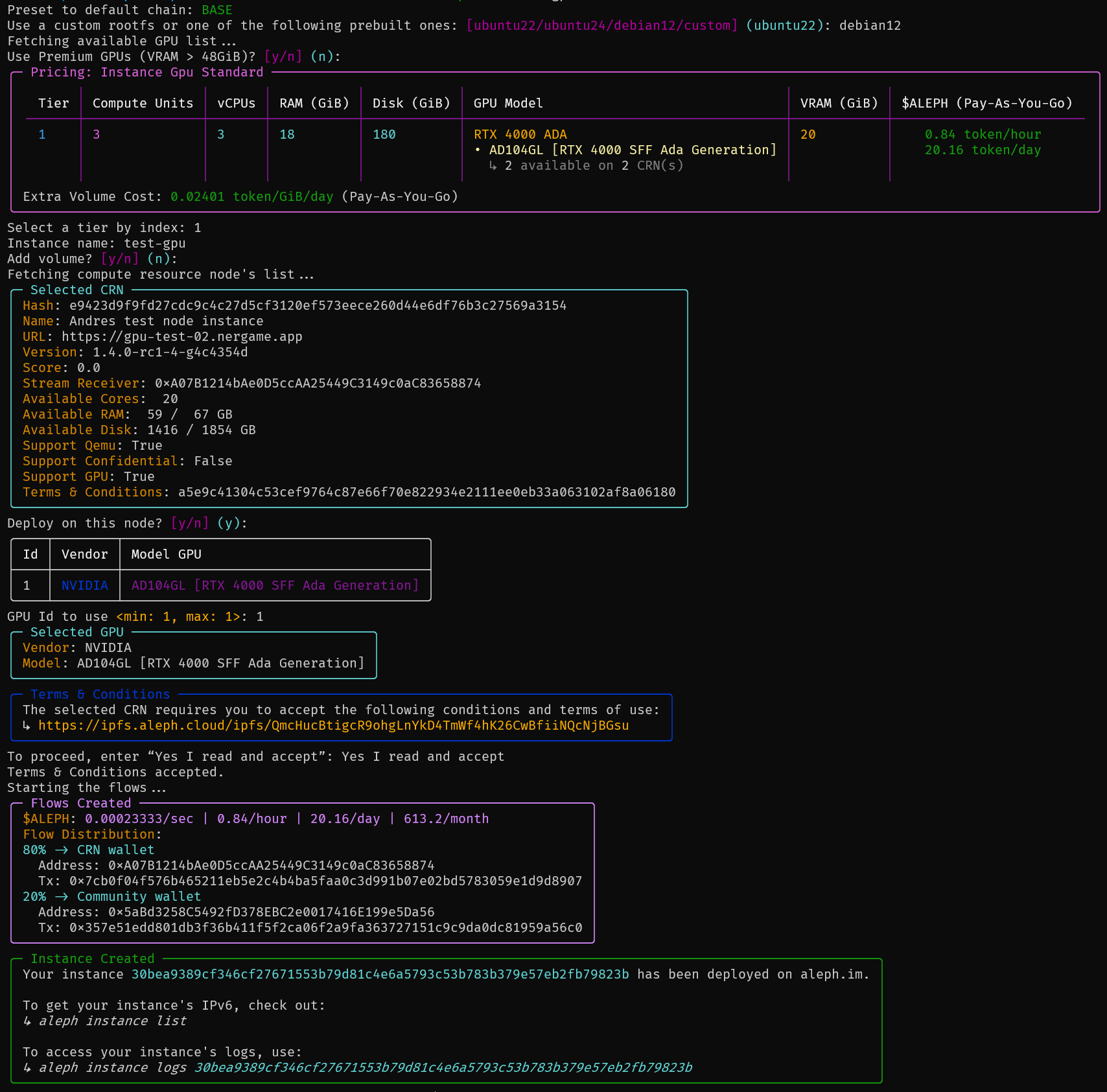
Your VM is now ready to use.
Retrieve VM Logs
Monitor your VM's activity:
aleph instance logs <vm-hash>Access Your VM via SSH
1. Find the Instance Details
- Via CLI:
aleph instance list- Via API: Access the compute node's API at
https://<node-url>/about/executions/list.
2. Connect via SSH:
Use the retrieved IP address to SSH into your VM:
ssh <user>@<ip> [-i <path-to-ssh-key>]- Default Users:
- Debian:
root - Ubuntu:
ubuntu
- Debian:
Using the GPU inside your VM
Install NVIDIA Linux Drivers
1. Installation
Debian
echo "deb http://deb.debian.org/debian/ bookworm main contrib non-free non-free-firmware" >> /etc/apt/sources.list
apt update -y && apt upgrade -y && apt autoremove -y
ℹ️ If prompted, press Enter for
Keep the local version currently installed.
Exit your vm and then reboot it with:
aleph instance reboot <vm-hash>Re-connect to your VM via SSH and run the following:
apt install linux-headers-$(uname -r) nvidia-driver software-properties-common -yUbuntu
apt update -y && apt upgrade -y && apt autoremove -y
apt install ubuntu-drivers-common --fix-missing -y
ubuntu-drivers --gpgpu install
ℹ️ If prompted, just press Enter.
2. Verify the Installation
To simply check that the installation went well, run the following:
nvidia-smiAlternatively, you can try to run ollama using the GPU:
curl -fsSL https://ollama.com/install.sh | sh
ollama run deepseek-r1:1.5b "Why use a decentralized cloud?" --verbose
Install NVIDIA CUDA Toolkit
Ensure you already have the NVIDIA drivers installed.
1. Installation
The following commands are usable for both Debian and Ubuntu.
distrib=$(echo "$(lsb_release -si | tr '[:upper:]' '[:lower:]')$(lsb_release -sr | tr -d '.')")
wget https://developer.download.nvidia.com/compute/cuda/repos/$distrib/x86_64/cuda-keyring_1.1-1_all.deb && dpkg -i cuda-keyring_1.1-1_all.deb && rm cuda-keyring_1.1-1_all.deb
apt update -y && apt install cuda-toolkit -y
echo "export PATH=/usr/local/cuda/bin:$PATH" >> ~/.bashrc && source ~/.bashrc
2. Verify the Installation
To simply check that the installation went well, run the following:
nvcc --version